- If you don't have a Docubee account yet, create one at https://docubee.app/signup/campaign/salesforce.
- Go to docubee.app and generate an API access token for your workspace. The token must have the Integrate with Salesforce permission to work correctly with this integration.
For help generating a Docubee token, see our help article: Generating a Token for API Access.
- Copy your generated API token for later, and return to your Salesforce organization. Go to Setup -> Security -> Named Credentials.
- On the Named Credentials page toggle to the External Credentials tab.
- Click the 'New' button to configure a new external credential.
- For the New External Credential enter the following information:
- For label enter Docubee API EC.
- For name enter Docubee_API_EC.
- Set the Authentication Protocol option to Custom.
- Click Save.
- After saving you should be viewing your newly created external credential. Go to the Principals section and click the New button.
- For Parameter Name enter Docubee_API_PR.
- In the Authentication Parameters section click the 'Add' button.
- For Parameter 1 enter the following information:
- For name enter API_Token.
- For value enter the API token that you created in Docubee.
- Click Save.
- Go down to the Custom Headers section and click the New button.
- For Name enter Authorization
- For Value enter {!$Credential.Docubee_API_EC.API_Token}
- Click Save.
- Go back to the main Named Credentials page and make sure you are toggled on the Named Credentials tab.
- Click the New button to add a new named credential.
- For the new named credential enter the following information:
- For label enter Docubee API.
- For name enter Signature_API.
- For URL enter https://docubee.app.
- For External Credential select Docubee API EC from the dropdown.
- Uncheck Generate Authorization Header.
- Check Allow Formulas in HTTP Header.
- For Allowed Namespaces enter OnTask.
- Click Save.
- In Setup, go to Users -> Permission Sets.
- Select to edit the permission set you wish to enable access to the Docubee integration.
- In your selected permission set, under the Apps section, click External Credential Principal Access.
- Under the External Credential Principal Access section, click Edit.
- In the available principals in the left box, select Docubee_API_EC - Docubee_API_PR, then click the Add button, then Save.
- Go back to your selected permission set, under the Apps section, click Object Settings.
- Under the Object Settings section, click User External Credentials, click Edit.
- Ensure the permission set has Read enabled, then Save.
- Go back to your selected permission set, under the Apps section, click Apex Class Access, click Edit.
- In the available apex classes in the left box, select all apex classes with the OnTask namespace, then click the Add button, then Save.
- Repeat steps 19-28 for each permission set you wish to enable access for.
-
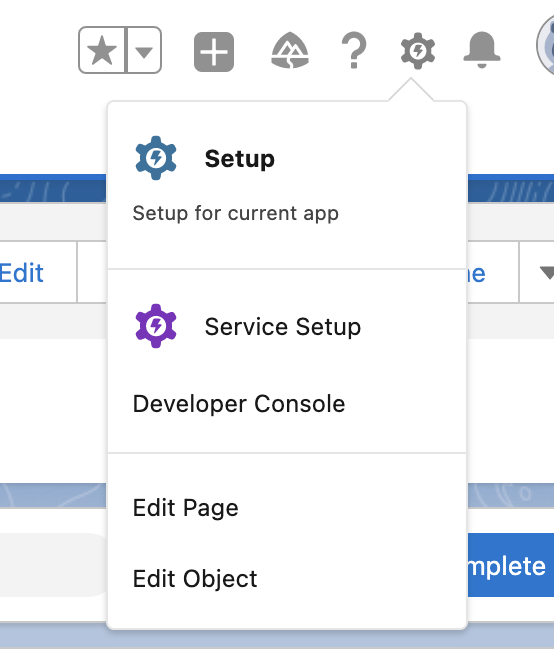
Go to Opportunities, select an opportunity, click the cog icon in the top right of the page, and select Edit Page from the options.
- Add the custom components of startSignatureProcess and signatureStatus wherever you want them to go on the page. NOTE: the startSignatureProcess and signatureStatus components will only work if associated to your Opportunities or Contacts. Adding these components to any other object type is not supported.
- Click Save and Activate (We recommend setting this configuration as your organization default if you would like all Opportunity pages to automatically have the components.)
- Add the custom component named templateDocument to any Home page or Record page using the same method as the other custom components. It can also be added to a custom lightning tab for more control over which profiles will be able to access the component and edit your document templates.
- As long as there are Contacts associated with the Contact Roles for an Opportunity and documents available via the Documents section of Docubee or the templateDocument component, you will be able to start sending documents for signature.
For a general overview of the Docubee Documents section reference this help article: Overview of the Documents Section